# Intelligence artificielle

# Procédure de mise en production

#### Cette procédure de mise en production s'applique à tous les outils liés à l'IA  


#### 1. Phase de test.  


Tester les modifications qui seront mises, en amont, au préalable.

#### 2. Présenter les changements (liste des documents), pour validation, au responsable des études.  


La mise en production ne peut pas commencer sans l'accord du responsable des études.

#### 3. Définir la date pour la MEP et s'assurer que plusieurs personnes compétentes sont disponibles à la date définie.  


Procéder à la mise en production en matinée idéalement. Le vendredi est à éviter.

#### 4. Prévenir les usagers que l'application sera indisponible (en cas de gros changements ou d'indisponibilité sur plusieurs minutes ou plus)  


\- Personnes ayant suivi l'atelier d'initiation sur l'IA : [https://onlyoffice.vincennes.fr/Products/Files/DocEditor.aspx?fileid=39384](https://onlyoffice.vincennes.fr/Products/Files/DocEditor.aspx?fileid=39384)

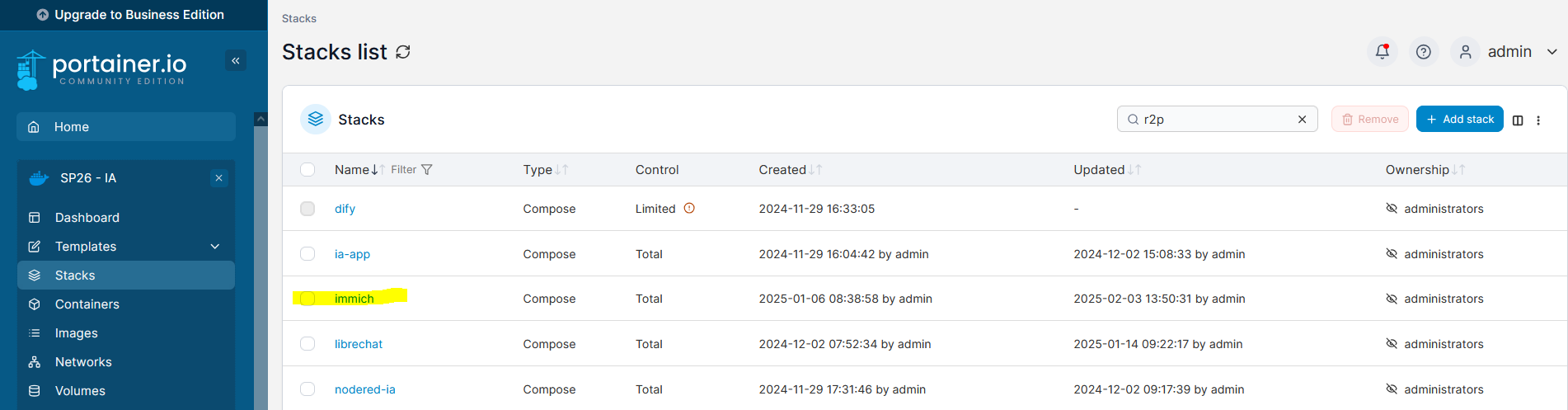
\- Immich : prévenir la DirCom

#### 5. Se préparer à un retour en arrière en cas de problème durant la mise en production  


\- Faire une copie des fichiers, avant modification, pour pouvoir facilement rétablir la version précédente

\- Pour l'extension Assistant IA, déployer la version précédente : https://addons.mozilla.org/fr/developers/addon/331f39fefe294d7d8498/versions

\- Éventuellement faire un snapshot

#### 6. Procéder aux modifications nécessaires et tester à la fin si tout est fonctionnel  


En cas de soucis, il faut s'assurer que l'application soit fonctionnelle :

\- tenter de résoudre le problème

\- contacter les autres personnes qui pourraient aider à résoudre le problème

\- revenir en arrière en restituant la version précédente (voir le point numéro 5)

<div class="pointer-container" id="bkmrk--3" style="display: block;"><div class="pointer anim is-page-editable" style="left: 41.9048%;"><div class="input-group inline block"><input id="bkmrk--4" placeholder="url" readonly="readonly" type="text"></input></div><svg class="svg-icon" data-icon="edit" role="presentation" viewbox="0 0 24 24" xmlns="http://www.w3.org/2000/svg"> </svg></div><div class="pointer anim is-page-editable" style="left: 41.9048%;">  
</div></div># Extension Firefox "Assistant IA"


# Mettre à jour les prompts par défaut de l'extension

L'extension Firefox 'Assistant IA" propose des prompts par défaut : Corriger, Résumer...

Pour modifier l'un des prompts, il est nécessaire de modifier le code javascript correspondant.

1\. Aller sur le projet du gitlab :

[https://gitlab.vincennes.fr/application-interne/extension\_firefox\_IAG](https://gitlab.vincennes.fr/application-interne/extension_firefox_IAG)

[![image-1739979043624.png](https://formagent.vincennes.fr/uploads/images/gallery/2025-02/scaled-1680-/image-1739979043624.png)](https://formagent.vincennes.fr/uploads/images/gallery/2025-02/image-1739979043624.png)

2\. Télécharger l'ensemble des fichier en cliquant sur ![image-1739979497209.png](https://formagent.vincennes.fr/uploads/images/gallery/2025-02/scaled-1680-/image-1739979497209.png)puis "zip".

Modifier le code se trouvant dans /src/content.js

```JavaScript
if (message.id == "corriger-le-texte") {<br></br>  demande_copilot = "corriger la phrase (orthographe et grammaire, répondre strictement à la demande, ne pas proposer de source) : '";<br></br>}<br></br>if (message.id == "resumer-le-texte") {<br></br>  demande_copilot = "résumer le texte suivant : '";<br></br>}<br></br><br></br>if (message.id == "expliquer-le-texte") {<br></br>  demande_copilot = "expliquer le texte suivant en apportant des sources : '";<br></br>}<br></br><br></br>if (message.id == "reformuler") {<br></br>  demande_copilot = "reformuler un texte avec les éléments suivants : '";<br></br>}<br></br><br></br>if (message.id == "traduire") {<br></br>  demande_copilot = "traduire en français : '";<br></br>}
```

3\. Tester le code

\- Désactiver l'extension "Assistant IA" si elle est déjà installée dans Firefox.

\- Ouvrir un onglet Firefox et copier/coller about:debugging#/runtime/this-firefox

[![image-1739979846927.png](https://formagent.vincennes.fr/uploads/images/gallery/2025-02/scaled-1680-/image-1739979846927.png)](https://formagent.vincennes.fr/uploads/images/gallery/2025-02/image-1739979846927.png)

\- Cliquer sur "Charger un module complémentaire temporaire"

\- Dans le répertoire de fichiers de l'extension, sélectionner manifest.json

[![image-1739979914825.png](https://formagent.vincennes.fr/uploads/images/gallery/2025-02/scaled-1680-/image-1739979914825.png)](https://formagent.vincennes.fr/uploads/images/gallery/2025-02/image-1739979914825.png)

\- L'extension se charge et l'écran devient

[![image-1739979962865.png](https://formagent.vincennes.fr/uploads/images/gallery/2025-02/scaled-1680-/image-1739979962865.png)](https://formagent.vincennes.fr/uploads/images/gallery/2025-02/image-1739979962865.png)

\- A chaque changement du fichier content.js =&gt; cliquer sur "Actualiser" pour avoir la dernière version.

\- Supprimer l'extension dès que le rendu est satisfaisant.

2\. Retourner sur [https://gitlab.vincennes.fr/application-interne/extension\_firefox\_IAG](https://gitlab.vincennes.fr/application-interne/extension_firefox_IAG) et Cliquer sur le bouton Web IDE puis sélectionner le fichier /src/content.js

[![image-1739979192515.png](https://formagent.vincennes.fr/uploads/images/gallery/2025-02/scaled-1680-/image-1739979192515.png)](https://formagent.vincennes.fr/uploads/images/gallery/2025-02/image-1739979192515.png)

3\. Modifier le code en fonction des tests précédents

4\. Cliquer sur le bouton "Commit" puis sélectionner "Commit sur master branch"

[![image-1739979351228.png](https://formagent.vincennes.fr/uploads/images/gallery/2025-02/scaled-1680-/image-1739979351228.png)](https://formagent.vincennes.fr/uploads/images/gallery/2025-02/image-1739979351228.png)

5\. Cliquer à nouveau sur "Commit"

Le gitlab est mis à jour avec la dernière version du document.

6\. Faire signer l'extension par Mozilla

[https://formagent.vincennes.fr/books/intelligence-artificielle/page/signer-une-extension-firefox](https://formagent.vincennes.fr/books/intelligence-artificielle/page/signer-une-extension-firefox)

# Signer une extension Firefox

Une extension développée pour Firefox peut être testée avec le mode développeur comme précisé sur le tutoriel :

[https://formagent.vincennes.fr/books/intelligence-artificielle/page/mettre-a-jour-les-prompts-par-defaut-de-lextension](https://formagent.vincennes.fr/books/intelligence-artificielle/page/mettre-a-jour-les-prompts-par-defaut-de-lextension)

Pour la déployer sur l'ensemble des postes, il est nécessaire de la faire reconnaître par Mozilla, c'est à dire la faire signer.

1\. Aller sur [https://addons.mozilla.org/fr/developers/](https://addons.mozilla.org/fr/developers/)

2\. S'identifier sur le portail en utilisant le compte <referentlogiciels@vincennes.fr> disponible sur psono.

3\. Préparer le package

<span style="text-decoration: underline;">Modifier le fichier manifest.json </span>

```json
{<br></br>  "manifest_version": 2,<br></br>  "name": "Assistant IA",<br></br>  "version": "2.1",<br></br>  "description": "Assistant pour les agents de la Ville de Vincennes",<br></br>  "permissions": [<br></br>    "contextMenus",<br></br>    "storage"<br></br>  ],<br></br>  "background": {<br></br>    "scripts": [<br></br>      "background.js"<br></br>    ]<br></br>  },<br></br>  "icons": {<br></br>    "48": "puzzle.png"<br></br>  },<br></br>  "options_ui": {<br></br>    "page": "options.html", <br></br>    "open_in_tab": false,<br></br>    "browser_style": true<br></br>  },<br></br>  "sidebar_action": {<br></br>    "default_title": "Assistant",<br></br>    "default_panel": "sidebar.html"<br></br>  },<br></br>  "browser_action": {<br></br>  "default_icon": {<br></br>    "48": "puzzle.png"<br></br>  },<br></br>  "default_title": "Ouvrir le sidebar"<br></br>  },<br></br><br></br>  "content_scripts": [<br></br>    {<br></br>      "matches": [<br></br>        "https://dify.vincennes.fr/chat/lfDdUckNIH9hGtQ4"<br></br>      ],<br></br>      "js": [<br></br>        "content.js"<br></br>      ]<br></br>    }<br></br>  ]<br></br>}
```

<p class="callout warning">Le numéro de version doit être modifié. Le cas échéant, Mozilla indiquera que la version est déjà présente.</p>

<span style="text-decoration: underline;">Préparer les fichiers</span>

Zipper les fichiers dans un fichier extension.zip. Le nom importe peu.

L'importance est que l'ensemble des fichiers soient à la racine du zip, et non dans un répertoire.

4\. Déposer le package

Aller sur la page [https://addons.mozilla.org/fr/developers/addon/submit/upload-listed](https://addons.mozilla.org/fr/developers/addon/submit/upload-listed)

Déposer le package et suivre les instructions.

Corriger les erreurs éventuelles signalées par Mozilla.

5\. Se rendre sur la page d'état du module

[![image-1740050007457.png](https://formagent.vincennes.fr/uploads/images/gallery/2025-02/scaled-1680-/image-1740050007457.png)](https://formagent.vincennes.fr/uploads/images/gallery/2025-02/image-1740050007457.png)
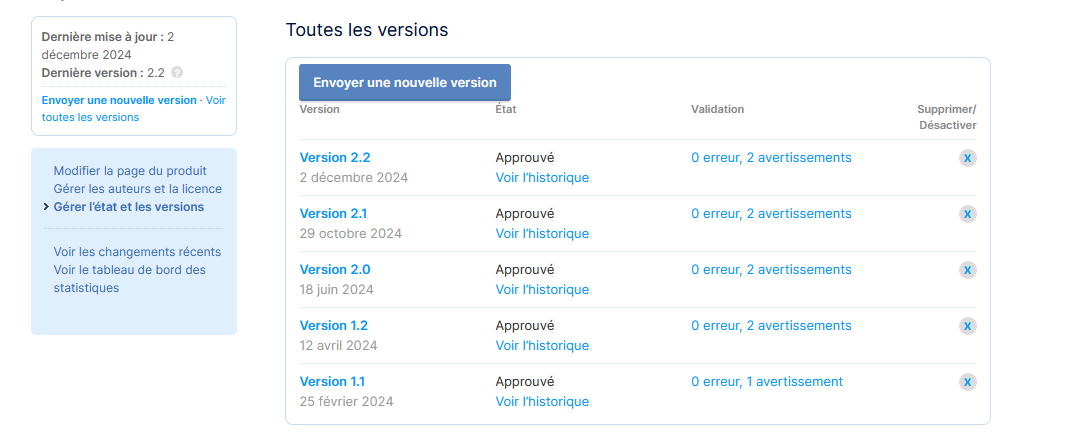
Attendre que le module passe en état "Approuvé".

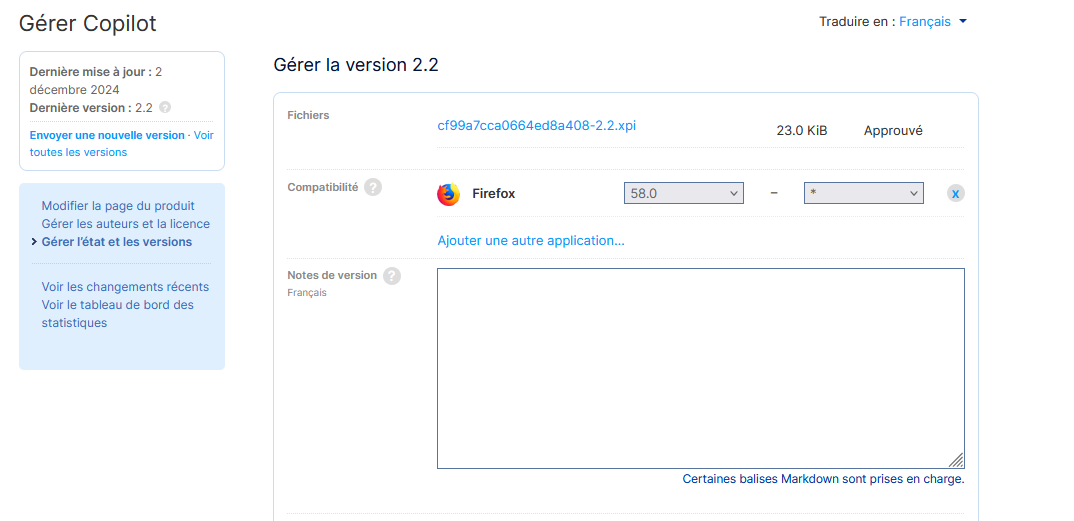
6\. Télécharger le .xpi

Cliquer sur le numéro de version et télécharger le .xpi (clic droit puis enregistrer la cible du lien sous...).

[![image-1740050058080.png](https://formagent.vincennes.fr/uploads/images/gallery/2025-02/scaled-1680-/image-1740050058080.png)](https://formagent.vincennes.fr/uploads/images/gallery/2025-02/image-1740050058080.png)
7\. Tester l'extension sur Firefox

8\. Demander au service exploitation le déploiement du .xpi

# Librechat


# Procédure de mise en production sur Librechat

####   


#### 1. Phase de test sur PreLibrechat.  


Tester les modifications qui seront mises sur Librechat (SP26) au préalable.

\- Modifications sur le fichier de configuration de prelibrechat (librechat.yaml)

\- Modifications dans la stack (docker-compose) de prelibrechat sur SD11

#### 2. Présenter les changements (liste des documents), pour validation, au responsable des études.  


La mise en production ne peux pas commencer sans l'accord du responsable des études.

#### 3. Définir la date pour la MEP et s'assurer que plusieurs personnes compétentes sont disponibles à la date définie.  


Procéder à la mise en production en mâtiné idéalement.

#### 4. Prévenir les usagers de Librechat que l'application sera indisponible  


#### 5. Se préparer à un retour en arrière en cas de problème durant la mise en production  


\- Faire une copie des fichiers, avant modification, pour pouvoir facilement rétablir la version précédente

(- Éventuellement faire un snapshot)

#### 6. Procéder aux modifications nécessaires et tester à la fin si tout est fonctionnel  


En cas de soucis, il faut s'assurer que l'application soit fonctionnelle :

\- tenter de résoudre le probleme

\- contacter les autres personnes qui pourraient aider à résoudre le probleme

\- revenir en arrière en restituant la version précédente (voir le point numéro 5)

# Mettre à jour Librechat

Librechat repose sur une stack Docker.

Le changelog se trouve sur [https://github.com/danny-avila/LibreChat/releases](https://github.com/danny-avila/LibreChat/releases)

**Attention** : ne prendre que les versions finales. Eviter les beta ou release candidate (rc).

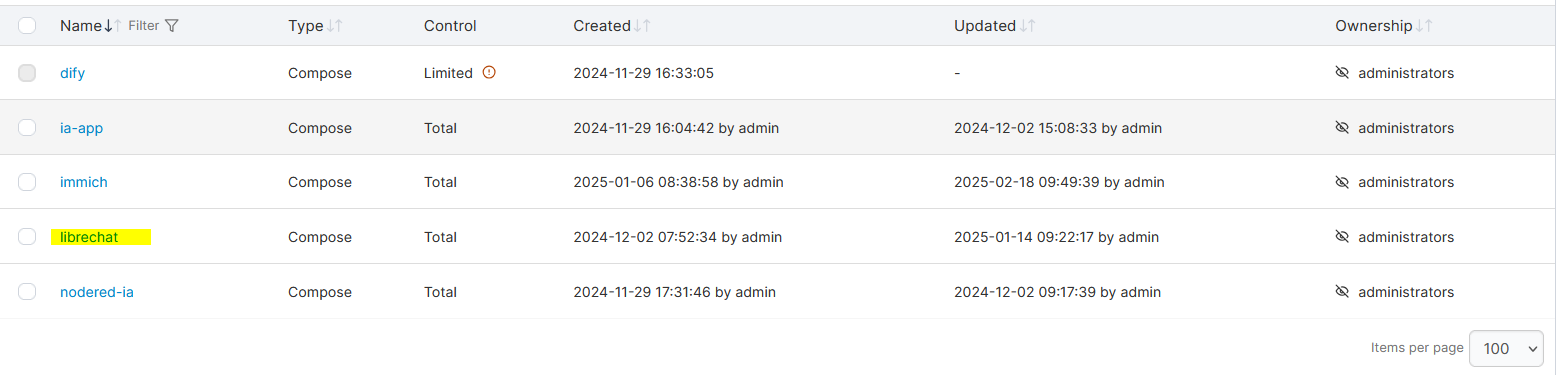
1\. Aller sur portainer et choisir le serveur SD11 (pour la préproduction) ou SP26 (pour la production)

2\. Lister les stacks et choisir librechat

[![image-1740050816898.png](https://formagent.vincennes.fr/uploads/images/gallery/2025-02/scaled-1680-/image-1740050816898.png)](https://formagent.vincennes.fr/uploads/images/gallery/2025-02/image-1740050816898.png)
3\. Cliquer sur l'onglet Editor et modifier le numéro de version

[![image-1740050879113.png](https://formagent.vincennes.fr/uploads/images/gallery/2025-02/scaled-1680-/image-1740050879113.png)](https://formagent.vincennes.fr/uploads/images/gallery/2025-02/image-1740050879113.png)
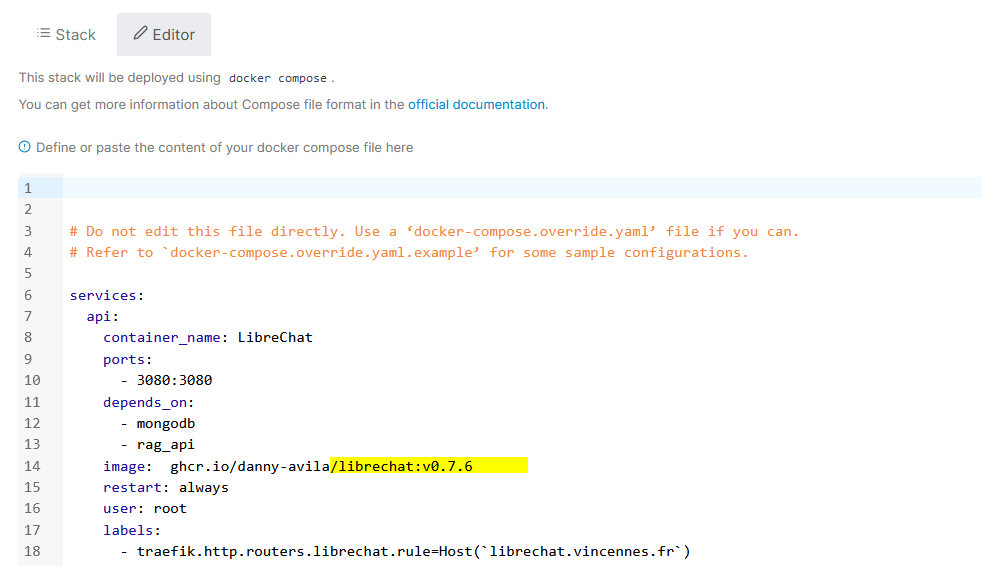
4\. Cliquer sur déployer

5\. Vérifier le bon fonctionnement et corriger les éventuelles erreurs

Les erreurs sont essentiellement dues à des évolutions du fichier de configuration ou des autres services précisés dans le docker-compose.

# Mettre à jour les modèles dans Librechat

La configuration de Librechat se fait à deux niveaux :

\- Dans le fichier de configuration de Librechat

\- Dans la stack (docker-compose) de Librechat

## Fichier de configuration de Librechat

#### 1. Identifier la localisation du fichier

Aller sur le container Librechat puis sur la partie Volumes

[![image-1740054060994.png](https://formagent.vincennes.fr/uploads/images/gallery/2025-02/scaled-1680-/image-1740054060994.png)](https://formagent.vincennes.fr/uploads/images/gallery/2025-02/image-1740054060994.png)

Le fichier peut être édité

\- soit dans le container (via /app/librechat/yaml)

\- soit en SSH sur le serveur (via /root/docker/librechat/config.yaml dans le cas présent)

#### 2. Editer le fichier suivant la méthode choisie

Ci-dessous un exemple de configuration pour les modèles Ollama :

```yaml
<br></br>    - name: "Ollama"<br></br>      apiKey: "ollama"<br></br>      # use 'host.docker.internal' instead of localhost if running LibreChat in a docker container<br></br>      baseURL: "http://sp26.vincennes.fr:11434/v1/"<br></br>      models:<br></br>        default: [<br></br>         "llama3.2-vision:11b","llama3.1:8b"<br></br>          ]<br></br>        # fetching list of models is supported but the `name` field must start<br></br>        # with `ollama` (case-insensitive), as it does in this example.<br></br>        fetch: false<br></br>      titleConvo: true<br></br>      titleModel: "current_model"<br></br>      summarize: false<br></br>      summaryModel: "current_model"<br></br>      forcePrompt: false<br></br>      modelDisplayLabel: "Ollama"<br></br>
```

La documentation de Librechat précise la signification des différents champs :

[https://www.librechat.ai/docs/configuration/librechat\_yaml/object\_structure/custom\_endpoint](https://www.librechat.ai/docs/configuration/librechat_yaml/object_structure/custom_endpoint)

<p class="callout warning">Le numéro de version du fichier config doit être changé</p>

## Fichier docker-compose de Librechat

1\. Dans stacks, sélectionner Librechat

[![image-1740054521953.png](https://formagent.vincennes.fr/uploads/images/gallery/2025-02/scaled-1680-/image-1740054521953.png)](https://formagent.vincennes.fr/uploads/images/gallery/2025-02/image-1740054521953.png)
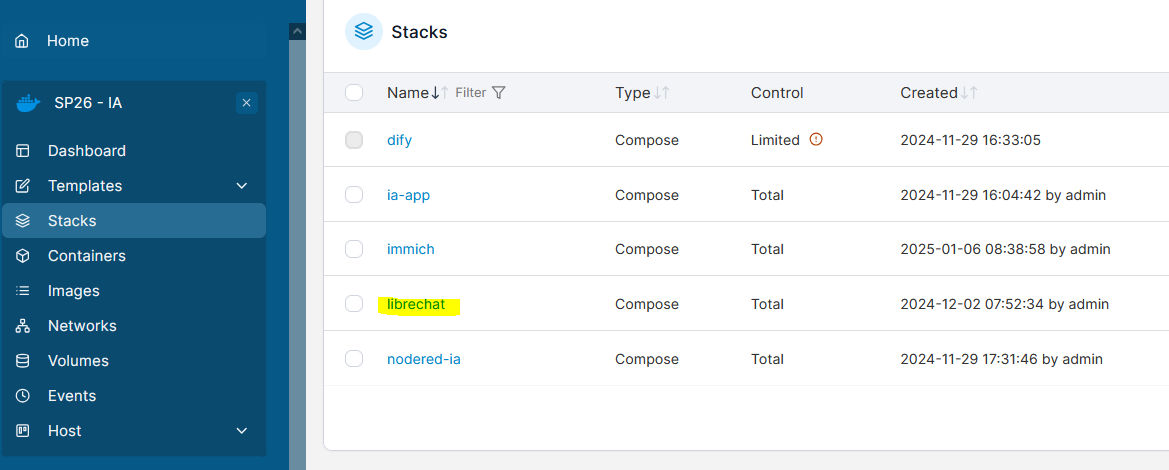
2\. Cliquer sur Editor

3\. Modifier la variable d'environnement ENDPOINTS

[![image-1740054621394.png](https://formagent.vincennes.fr/uploads/images/gallery/2025-02/scaled-1680-/image-1740054621394.png)](https://formagent.vincennes.fr/uploads/images/gallery/2025-02/image-1740054621394.png)
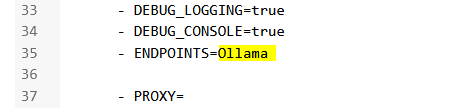
<p class="callout warning">Elle doit correspondre au champ "name" de config.yaml</p>

4\. Embeddings

Dans le cas où le modèle d'embedding du RAG doit être modifié, les options se trouvent sur la partie "rag\_api".

[![image-1740054703656.png](https://formagent.vincennes.fr/uploads/images/gallery/2025-02/scaled-1680-/image-1740054703656.png)](https://formagent.vincennes.fr/uploads/images/gallery/2025-02/image-1740054703656.png)
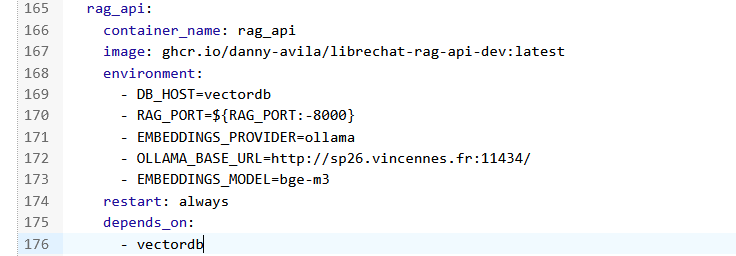
Les explications pour les différents champs sur dans la documentation Librechat :

[https://www.librechat.ai/docs/configuration/rag\_api](https://www.librechat.ai/docs/configuration/rag_api)

5\. Cliquer sur Deploy pour mettre à jour Librechat

## Tests

Vérifier le bon fonctionnement.

Les logs du container Librechat indiqueront les problèmes éventuels.

# Immich


# Mettre à jour Immich

<p class="callout warning">Penser à faire un snapshot de la VM et prévenir les utilisateurs.</p>

Pour mettre à jour l'application, il faut se rendre sur Portainer :<span class="Object" id="bkmrk-%C2%A0http%3A%2F%2Fst30%3A9000" role="link"><span class="Object" id="bkmrk-%C2%A0http%3A%2F%2Fst30%3A9000-0" role="link"> https://st30.vincennes.fr:9000</span></span>

<span class="Object" role="link"><span class="Object" role="link">1. Sélectionner le serveur SP26</span></span>

<span class="Object" role="link"><span class="Object" role="link">2. Sélectionner "Stacks" puis Immich :</span></span>

[![image-1741616402465.png](https://formagent.vincennes.fr/uploads/images/gallery/2025-03/scaled-1680-/image-1741616402465.png)](https://formagent.vincennes.fr/uploads/images/gallery/2025-03/image-1741616402465.png)

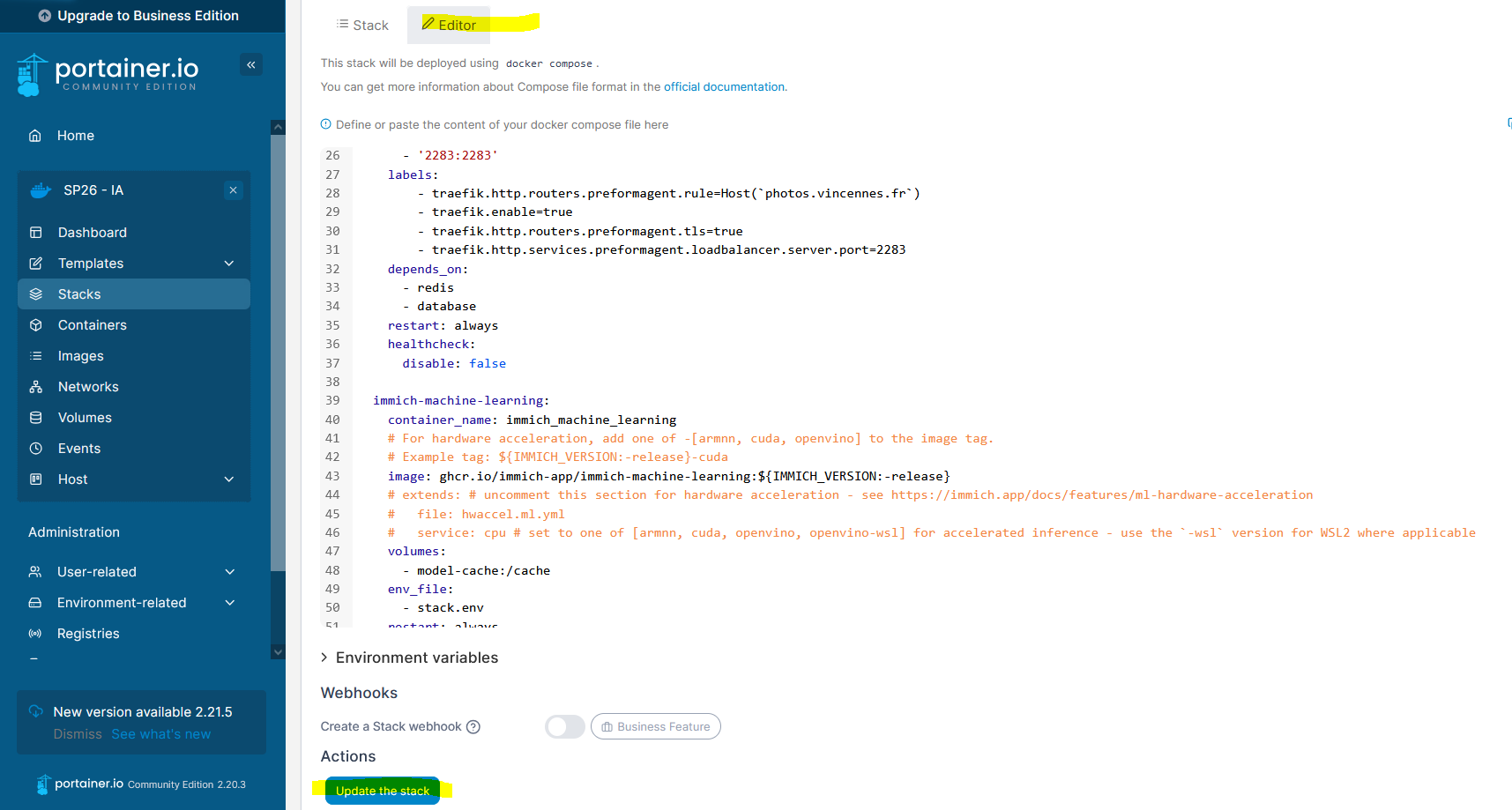
3\. Cliquer sur l'onglet "Editor" puis "Update the stack" :

[![image-1741617522785.png](https://formagent.vincennes.fr/uploads/images/gallery/2025-03/scaled-1680-/image-1741617522785.png)](https://formagent.vincennes.fr/uploads/images/gallery/2025-03/image-1741617522785.png)
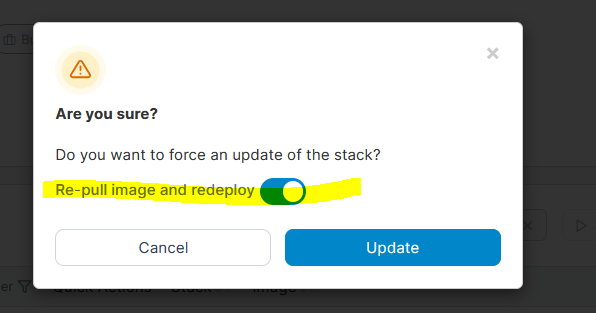
4\. Activer "Re-pull image and redeploy", cliquer sur "Update" et attendre quelques minutes :

[![image-1741617943269.png](https://formagent.vincennes.fr/uploads/images/gallery/2025-03/scaled-1680-/image-1741617943269.png)](https://formagent.vincennes.fr/uploads/images/gallery/2025-03/image-1741617943269.png)
# Sophia


# Architecture générale

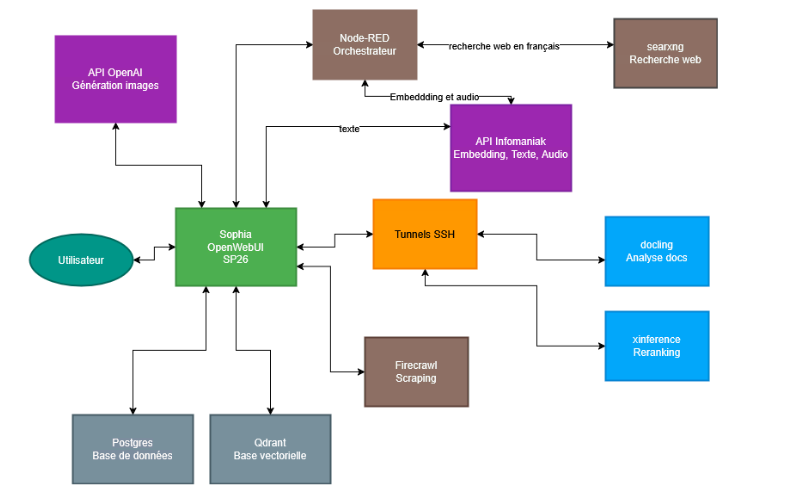
### Schéma d'architecture générale de Sophia

<div class="shrink-0 ltr:mr-3 rtl:ml-3 hidden @lg:flex mt-1  svelte-1u5gq5j" id="bkmrk-">![profile](https://sophia.vincennes.fr/favicon.png)</div>[![image-1759053377657.png](https://formagent.vincennes.fr/uploads/images/gallery/2025-09/scaled-1680-/image-1759053377657.png)](https://formagent.vincennes.fr/uploads/images/gallery/2025-09/image-1759053377657.png)

Pour modifier l'image : [https://onlyoffice.vincennes.fr/Products/Files/DocEditor.aspx?fileid=40912](https://onlyoffice.vincennes.fr/Products/Files/DocEditor.aspx?fileid=40912)

<div class="flex-auto w-0 pl-1 relative" id="bkmrk-today-at-19%3A45"><div class="self-center font-semibold line-clamp-1 flex gap-1 items-center"><div class="flex">  
</div><div class="self-center text-xs font-medium first-letter:capitalize ml-0.5 translate-y-[1px] invisible group-hover:visible transition text-gray-400"><div class="flex"><span class="line-clamp-1">L'architecture Today at 19:45</span></div></div></div><div><div class="chat-assistant w-full min-w-full markdown-prose svelte-1u5gq5j"><div><div class="text-sm flex flex-col w-full">L'architecture est basée sur la documentation d'openwebui : [https://docs.openwebui.com/](https://docs.openwebui.com/).</div></div></div></div></div><div class="w-full flex flex-col relative" id="bkmrk--2"><div class="w-full flex flex-col relative"><div>  
- - - - - -

</div></div></div>### Tableau récapitulatif des conteneurs - visualisation par Portainer

<div class="w-full flex flex-col relative" id="bkmrk-conteneur-%2F-service-"><div><div class="relative w-full group mb-2"><div class="scrollbar-hidden relative overflow-x-auto max-w-full"><table class="w-full text-sm text-left text-gray-500 dark:text-gray-400 max-w-full rounded-xl"><thead class="text-xs text-gray-700 uppercase bg-white dark:bg-gray-900 dark:text-gray-400 border-none"><tr class=""><th class="px-2.5! py-2! cursor-pointer border-b border-gray-100! dark:border-gray-800!" scope="col" style="text-align: null;"><div class="gap-1.5 text-left"><div class="shrink-0 break-normal">**Conteneur / Service**</div></div></th><th class="px-2.5! py-2! cursor-pointer border-b border-gray-100! dark:border-gray-800!" scope="col" style="text-align: null;"><div class="gap-1.5 text-left"><div class="shrink-0 break-normal">**Stack / Origine**</div></div></th><th class="px-2.5! py-2! cursor-pointer border-b border-gray-100! dark:border-gray-800!" scope="col" style="text-align: null;"><div class="gap-1.5 text-left"><div class="shrink-0 break-normal">**Rôle**</div></div></th><th class="px-2.5! py-2! cursor-pointer border-b border-gray-100! dark:border-gray-800!" scope="col" style="text-align: null;"><div class="gap-1.5 text-left"><div class="shrink-0 break-normal">**Port hôte (local)**</div></div></th><th class="px-2.5! py-2! cursor-pointer border-b border-gray-100! dark:border-gray-800!" scope="col" style="text-align: null;"><div class="gap-1.5 text-left"><div class="shrink-0 break-normal">**Port conteneur**</div></div></th><th class="px-2.5! py-2! cursor-pointer border-b border-gray-100! dark:border-gray-800!" scope="col" style="text-align: null;"><div class="gap-1.5 text-left"><div class="shrink-0 break-normal">**URL d’accès depuis Sophia**</div></div></th></tr></thead><tbody><tr class="bg-white dark:bg-gray-900 text-xs"><td class="px-3! py-2! text-gray-900 dark:text-white w-max border-b border-gray-50! dark:border-gray-850!"><div class="break-normal">`openwebui`</div></td><td class="px-3! py-2! text-gray-900 dark:text-white w-max border-b border-gray-50! dark:border-gray-850!"><div class="break-normal">Sophia</div></td><td class="px-3! py-2! text-gray-900 dark:text-white w-max border-b border-gray-50! dark:border-gray-850!"><div class="break-normal">Interface principale</div></td><td class="px-3! py-2! text-gray-900 dark:text-white w-max border-b border-gray-50! dark:border-gray-850!"><div class="break-normal">3002</div></td><td class="px-3! py-2! text-gray-900 dark:text-white w-max border-b border-gray-50! dark:border-gray-850!"><div class="break-normal">8080</div></td><td class="px-3! py-2! text-gray-900 dark:text-white w-max border-b border-gray-50! dark:border-gray-850!"><div class="break-normal">`https://sophia.vincennes.fr`</div></td></tr><tr class="bg-white dark:bg-gray-900 text-xs"><td class="px-3! py-2! text-gray-900 dark:text-white w-max border-b border-gray-50! dark:border-gray-850!"><div class="break-normal">`qdrant`</div></td><td class="px-3! py-2! text-gray-900 dark:text-white w-max border-b border-gray-50! dark:border-gray-850!"><div class="break-normal">Sophia</div></td><td class="px-3! py-2! text-gray-900 dark:text-white w-max border-b border-gray-50! dark:border-gray-850!"><div class="break-normal">Base vectorielle (RAG)</div></td><td class="px-3! py-2! text-gray-900 dark:text-white w-max border-b border-gray-50! dark:border-gray-850!"><div class="break-normal">6333, 6334</div></td><td class="px-3! py-2! text-gray-900 dark:text-white w-max border-b border-gray-50! dark:border-gray-850!"><div class="break-normal">6333, 6334</div></td><td class="px-3! py-2! text-gray-900 dark:text-white w-max border-b border-gray-50! dark:border-gray-850!"><div class="break-normal">Interne (via API locale)</div></td></tr><tr class="bg-white dark:bg-gray-900 text-xs"><td class="px-3! py-2! text-gray-900 dark:text-white w-max border-b border-gray-50! dark:border-gray-850!"><div class="break-normal">`postgres`</div></td><td class="px-3! py-2! text-gray-900 dark:text-white w-max border-b border-gray-50! dark:border-gray-850!"><div class="break-normal">Sophia</div></td><td class="px-3! py-2! text-gray-900 dark:text-white w-max border-b border-gray-50! dark:border-gray-850!"><div class="break-normal">Base de données d’application</div></td><td class="px-3! py-2! text-gray-900 dark:text-white w-max border-b border-gray-50! dark:border-gray-850!"><div class="break-normal">5437</div></td><td class="px-3! py-2! text-gray-900 dark:text-white w-max border-b border-gray-50! dark:border-gray-850!"><div class="break-normal">5432</div></td><td class="px-3! py-2! text-gray-900 dark:text-white w-max border-b border-gray-50! dark:border-gray-850!"><div class="break-normal">Interne</div></td></tr><tr class="bg-white dark:bg-gray-900 text-xs"><td class="px-3! py-2! text-gray-900 dark:text-white w-max border-b border-gray-50! dark:border-gray-850!"><div class="break-normal">`sophia-nodered-openwebui-1`</div></td><td class="px-3! py-2! text-gray-900 dark:text-white w-max border-b border-gray-50! dark:border-gray-850!"><div class="break-normal">Sophia</div></td><td class="px-3! py-2! text-gray-900 dark:text-white w-max border-b border-gray-50! dark:border-gray-850!"><div class="break-normal">Automatisation, intégration des services</div></td><td class="px-3! py-2! text-gray-900 dark:text-white w-max border-b border-gray-50! dark:border-gray-850!"><div class="break-normal">1886</div></td><td class="px-3! py-2! text-gray-900 dark:text-white w-max border-b border-gray-50! dark:border-gray-850!"><div class="break-normal">1880</div></td><td class="px-3! py-2! text-gray-900 dark:text-white w-max border-b border-gray-50! dark:border-gray-850!"><div class="break-normal">`http://sp26.vincennes.fr:1886`</div></td></tr><tr class="bg-white dark:bg-gray-900 text-xs"><td class="px-3! py-2! text-gray-900 dark:text-white w-max border-b border-gray-50! dark:border-gray-850!"><div class="break-normal">`infomaniak-xinference-1`</div></td><td class="px-3! py-2! text-gray-900 dark:text-white w-max border-b border-gray-50! dark:border-gray-850!"><div class="break-normal">Infomaniak (tunnel SSH)</div></td><td class="px-3! py-2! text-gray-900 dark:text-white w-max border-b border-gray-50! dark:border-gray-850!"><div class="break-normal">Tunnel vers xinference (reranking)</div></td><td class="px-3! py-2! text-gray-900 dark:text-white w-max border-b border-gray-50! dark:border-gray-850!"><div class="break-normal">9995</div></td><td class="px-3! py-2! text-gray-900 dark:text-white w-max border-b border-gray-50! dark:border-gray-850!"><div class="break-normal">9998</div></td><td class="px-3! py-2! text-gray-900 dark:text-white w-max border-b border-gray-50! dark:border-gray-850!"><div class="break-normal">`http://sp26.vincennes.fr:9995`</div></td></tr><tr class="bg-white dark:bg-gray-900 text-xs"><td class="px-3! py-2! text-gray-900 dark:text-white w-max border-b border-gray-50! dark:border-gray-850!"><div class="break-normal">`infomaniak-docling-1`</div></td><td class="px-3! py-2! text-gray-900 dark:text-white w-max border-b border-gray-50! dark:border-gray-850!"><div class="break-normal">Infomaniak (tunnel SSH)</div></td><td class="px-3! py-2! text-gray-900 dark:text-white w-max border-b border-gray-50! dark:border-gray-850!"><div class="break-normal">Tunnel vers docling (analyse de documents)</div></td><td class="px-3! py-2! text-gray-900 dark:text-white w-max border-b border-gray-50! dark:border-gray-850!"><div class="break-normal">5002</div></td><td class="px-3! py-2! text-gray-900 dark:text-white w-max border-b border-gray-50! dark:border-gray-850!"><div class="break-normal">5001</div></td><td class="px-3! py-2! text-gray-900 dark:text-white w-max border-b border-gray-50! dark:border-gray-850!"><div class="break-normal">`http://sp26.vincennes.fr:5002`</div></td></tr><tr class="bg-white dark:bg-gray-900 text-xs"><td class="px-3! py-2! text-gray-900 dark:text-white w-max border-b border-gray-50! dark:border-gray-850!"><div class="break-normal">`infomaniak-portainer_agent-1`</div></td><td class="px-3! py-2! text-gray-900 dark:text-white w-max border-b border-gray-50! dark:border-gray-850!"><div class="break-normal">Infomaniak (tunnel SSH)</div></td><td class="px-3! py-2! text-gray-900 dark:text-white w-max border-b border-gray-50! dark:border-gray-850!"><div class="break-normal">Agent Portainer pour supervision distante</div></td><td class="px-3! py-2! text-gray-900 dark:text-white w-max border-b border-gray-50! dark:border-gray-850!"><div class="break-normal">9002</div></td><td class="px-3! py-2! text-gray-900 dark:text-white w-max border-b border-gray-50! dark:border-gray-850!"><div class="break-normal">9001</div></td><td class="px-3! py-2! text-gray-900 dark:text-white w-max border-b border-gray-50! dark:border-gray-850!"><div class="break-normal">Interne (gestion Docker)</div></td></tr><tr class="bg-white dark:bg-gray-900 text-xs"><td class="px-3! py-2! text-gray-900 dark:text-white w-max border-b border-gray-50! dark:border-gray-850!"><div class="break-normal">`searxng`</div></td><td class="px-3! py-2! text-gray-900 dark:text-white w-max border-b border-gray-50! dark:border-gray-850!"><div class="break-normal">ia-app</div></td><td class="px-3! py-2! text-gray-900 dark:text-white w-max border-b border-gray-50! dark:border-gray-850!"><div class="break-normal">Moteur de recherche web</div></td><td class="px-3! py-2! text-gray-900 dark:text-white w-max border-b border-gray-50! dark:border-gray-850!"><div class="break-normal">8056</div></td><td class="px-3! py-2! text-gray-900 dark:text-white w-max border-b border-gray-50! dark:border-gray-850!"><div class="break-normal">8080</div></td><td class="px-3! py-2! text-gray-900 dark:text-white w-max border-b border-gray-50! dark:border-gray-850!"><div class="break-normal">Via Node-RED (recherche)</div></td></tr><tr class="bg-white dark:bg-gray-900 text-xs"><td class="px-3! py-2! text-gray-900 dark:text-white w-max border-b border-gray-50! dark:border-gray-850!"><div class="break-normal">`firecrawl-api-1`</div></td><td class="px-3! py-2! text-gray-900 dark:text-white w-max border-b border-gray-50! dark:border-gray-850!"><div class="break-normal">firecrawl</div></td><td class="px-3! py-2! text-gray-900 dark:text-white w-max border-b border-gray-50! dark:border-gray-850!"><div class="break-normal">Analyse de pages web (scraping intelligent)</div></td><td class="px-3! py-2! text-gray-900 dark:text-white w-max border-b border-gray-50! dark:border-gray-850!"><div class="break-normal">3003</div></td><td class="px-3! py-2! text-gray-900 dark:text-white w-max border-b border-gray-50! dark:border-gray-850!"><div class="break-normal">3002</div></td><td class="px-3! py-2! text-gray-900 dark:text-white w-max border-b border-gray-50! dark:border-gray-850!"><div class="break-normal">`http://sp26.vincennes.fr:3003`</div></td></tr><tr class="bg-white dark:bg-gray-900 text-xs"><td class="px-3! py-2! text-gray-900 dark:text-white w-max border-b border-gray-50! dark:border-gray-850!"><div class="break-normal">`docling` (VM Infomaniak)</div></td><td class="px-3! py-2! text-gray-900 dark:text-white w-max border-b border-gray-50! dark:border-gray-850!"><div class="break-normal">-</div></td><td class="px-3! py-2! text-gray-900 dark:text-white w-max border-b border-gray-50! dark:border-gray-850!"><div class="break-normal">Analyse de documents (PDF, etc.)</div></td><td class="px-3! py-2! text-gray-900 dark:text-white w-max border-b border-gray-50! dark:border-gray-850!"><div class="break-normal">5001</div></td><td class="px-3! py-2! text-gray-900 dark:text-white w-max border-b border-gray-50! dark:border-gray-850!"><div class="break-normal">5001</div></td><td class="px-3! py-2! text-gray-900 dark:text-white w-max border-b border-gray-50! dark:border-gray-850!"><div class="break-normal">Accès distant (via tunnel SSH depuis SP26:5002)</div></td></tr><tr class="bg-white dark:bg-gray-900 text-xs"><td class="px-3! py-2! text-gray-900 dark:text-white w-max border-b border-gray-50! dark:border-gray-850!"><div class="break-normal">`xinference` (VM Infomaniak)</div></td><td class="px-3! py-2! text-gray-900 dark:text-white w-max border-b border-gray-50! dark:border-gray-850!"><div class="break-normal">-</div></td><td class="px-3! py-2! text-gray-900 dark:text-white w-max border-b border-gray-50! dark:border-gray-850!"><div class="break-normal">Modèle de reranking (`bge-reranker-v2-m3`)</div></td><td class="px-3! py-2! text-gray-900 dark:text-white w-max border-b border-gray-50! dark:border-gray-850!"><div class="break-normal">9997</div></td><td class="px-3! py-2! text-gray-900 dark:text-white w-max border-b border-gray-50! dark:border-gray-850!"><div class="break-normal">9997</div></td><td class="px-3! py-2! text-gray-900 dark:text-white w-max border-b border-gray-50! dark:border-gray-850!"><div class="break-normal">Accès distant (via tunnel SSH depuis SP26:9995)</div></td></tr><tr class="bg-white dark:bg-gray-900 text-xs"><td class="px-3! py-2! text-gray-900 dark:text-white w-max "><div class="break-normal">`portainer_agent` (VM Infomaniak)</div></td><td class="px-3! py-2! text-gray-900 dark:text-white w-max "><div class="break-normal">-</div></td><td class="px-3! py-2! text-gray-900 dark:text-white w-max "><div class="break-normal">Agent Docker pour supervision</div></td><td class="px-3! py-2! text-gray-900 dark:text-white w-max "><div class="break-normal">9001</div></td><td class="px-3! py-2! text-gray-900 dark:text-white w-max "><div class="break-normal">9001</div></td><td class="px-3! py-2! text-gray-900 dark:text-white w-max "><div class="break-normal">Accès distant (via tunnel SSH depuis SP26:9002)</div></td></tr></tbody></table>

</div></div></div></div>### Réglages dans l’interface administrateur - visualisation par Openwebui

#### **1. Menu Connexions**

- **URL** : `https://sophia.vincennes.fr/admin/settings/connections`
- **Fonction** : Gestion des connexions aux modèles IA hébergés sur Infomaniak.
- **Détails** : 
    - Affiche l’état de disponibilité des endpoints IA (texte, audio, image).
    - Aucune action de configuration possible directement : en cas de problème, contact avec le support requis.
    - Vérification de la connectivité aux API distantes.

<div class="my-2" id="bkmrk--4">  
</div>#### **2. Menu Documents**

- **URL** : `https://sophia.vincennes.fr/admin/settings/documents`
- **Fonction** : Configuration du traitement des documents (analyse, embedding, reranking).
- **Paramètres** : 
    - **Analyse de documents** :  
        → URL : `http://sp26.vincennes.fr:5002/`  
        → Connecté au service **docling** via tunnel SSH.
    - **Embedding** :  
        → URL : `http://sp26.vincennes.fr:1886/`  
        → Passerelle via **Node-RED**, qui relaye vers le modèle `bge_multilingual_gemma2` sur Infomaniak.  
        → Utilisation de Node-RED pour limiter et réguler les appels API.
    - **Reranking (RAG)** :  
        → URL : `http://sp26.vincennes.fr:9995/v1/rerank`  
        → Connecté au modèle `bge-reranker-v2-m3` via **xinference** sur Infomaniak (tunnel SSH).

<div class="my-2" id="bkmrk--5">  
</div>#### **3. Menu Recherche web**

- **URL** : `https://sophia.vincennes.fr/admin/settings/web`
- **Fonction** : Configuration de la recherche web et de l’analyse des résultats.
- **Paramètres** : 
    - **Recherche** :  
        → URL : `http://sp26.vincennes.fr:1886/search?q=<query>`  
        → Passerelle via **Node-RED**, qui interroge **searxng**.  
        → Node-RED assure la traduction de la requête en français si nécessaire.
    - **Analyse des pages** :  
        → URL : `http://sp26.vincennes.fr:3003/`  
        → Envoi des URLs récupérées vers **Firecrawl** pour extraction de contenu structuré.

<div class="my-2" id="bkmrk--6">  
</div>#### **4. Menu Interface utilisateur**

- **Fonction** : Génération automatique de métadonnées pour améliorer l’expérience utilisateur.
- **Utilisation** : 
    - Appels aux **API Infomaniak** pour : 
        - Génération de **titres** pertinents.
        - Création de **tags** et de **mots-clés** pour la recherche.
    - Ces fonctionnalités enrichissent les réponses et les contenus générés.

<div class="my-2" id="bkmrk--7">  
</div>#### **5. Menu Audio**

- **URL** : `https://sophia.vincennes.fr/admin/settings/audio`
- **Fonction** : Transcription de fichiers audio en texte.
- **Paramètres** : 
    - **Transcription** :  
        → URL : `http://sp26.vincennes.fr:1886/`  
        → Utilisation de **Node-RED** pour gérer l’appel à l’API Infomaniak.  
        → Le processus est asynchrone : Node-RED surveille la tâche et renvoie le texte une fois disponible.
    - Permet de traiter des fichiers audio longs via une file d’attente.

<div class="my-2" id="bkmrk--8">  
</div>#### **6. Menu Images**

- **Fonction** : Génération d’images à partir de descriptions textuelles.
- **Paramètres** : 
    - Appel direct aux **endpoints OpenAI** (ex: DALL·E).
    - Aucun traitement local ou intermédiaire : la requête est envoyée directement à OpenAI.
    - Les images générées sont intégrées dans les réponses de l’interface.

# Vérification du bon fonctionnement

Voici une **checklist de vérification du bon fonctionnement** du système, suivie d’un **tableau récapitulatif des problèmes possibles en cas d’indisponibilité**.

<div id="bkmrk-"><div>- - - - - -

</div></div>### ✅ **Checklist de vérification du bon fonctionnement**

<div id="bkmrk-%C3%89l%C3%A9ment-%C3%A0-v%C3%A9rifier-p"><div><table><thead><tr><th>Élément à vérifier</th><th>Procédure de vérification</th><th>Statut (✓/✗)</th></tr></thead><tbody><tr><td>**1. Containers dans Portainer**</td><td>Accéder à l’interface Portainer et s’assurer que tous les conteneurs sont en état **"Running"** :  
- `openwebui`, `qdrant`, `postgres`, `sophia-nodered-openwebui-1`  
- `infomaniak-xinference-1`, `infomaniak-docling-1`, `infomaniak-portainer_agent-1`  
- `searxng`, `firecrawl-api-1 (et les containers de la stack firecrawl)`</td><td>  
</td></tr><tr><td>**2. Interface Sophia (OpenWebUI)**</td><td>Accéder à : `https://sophia.vincennes.fr`  
→ Vérifier que la page charge correctement et que l’interface est interactive.</td><td>  
</td></tr><tr><td>**3. Interface Node-RED**</td><td>Accéder à : `http://sp26.vincennes.fr:1886`  
→ Vérifier que l’éditeur s’ouvre et que les flux sont actifs.</td><td>  
</td></tr><tr><td>**4. Firecrawl (API et message par défaut)**</td><td>Accéder à : `http://sp26.vincennes.fr:3003`  
→ Vérifier que la réponse "SCRAPERS-JS: Hello, world! K8s! "s’affiche.</td><td>  
</td></tr><tr><td>**5. Interface Docling**</td><td>Accéder à : `http://sp26.vincennes.fr:5002/ui`  
→ Vérifier que l’interface utilisateur de Docling est accessible.</td><td>  
</td></tr><tr><td>**6. XInference et modèle de reranking**</td><td>1. Accéder à l’interface XInference via le tunnel : `http://sp26.vincennes.fr:9995`  
2. Vérifier que le modèle `bge-reranker-v2-m3` est **chargé et en cours d’exécution** dans la section `/reranker`.</td><td>  
</td></tr><tr><td>**7. SearXNG**</td><td>Accéder à : `http://sp26.vincennes.fr:8056`  
→ Vérifier que l’interface de recherche s’affiche.  
→ Effectuer une recherche test (ex: "test").</td><td>  
</td></tr><tr><td>**8. Endpoint OpenAI**</td><td>Depuis l’interface Sophia (Menu Images) :  
→ Lancer une génération d’image.  
→ Vérifier que la requête atteint OpenAI et retourne une image.</td><td>  
</td></tr><tr><td>**9. Endpoints Infomaniak (via Node-RED)**</td><td>Vérifier dans les menus Sophia :  
- **Connexions** : état des endpoints texte/audio/image  
- **Documents**, **Audio**, **Recherche** : que les appels passent via `http://sp26.vincennes.fr:1886`  
→ Vérifier les logs Node-RED en cas d’erreur.</td><td>  
</td></tr><tr><td>**10. Logs des conteneurs de tunnel SSH**</td><td>Vérifier les logs des conteneurs suivants dans Portainer :  
- `infomaniak-xinference-1`  
- `infomaniak-docling-1`  
- `infomaniak-portainer_agent-1`  
→ Rechercher des erreurs de connexion SSH, timeout ou refus.  
→ S’assurer que la VM Infomaniak est joignable (ping ou test de connexion réseau).</td><td>  
</td></tr></tbody></table>

- - - - - -

</div></div>### ⚠️ **Tableau des problèmes possibles en cas d’indisponibilité**

<div id="bkmrk-service-indisponible"><div><table><thead><tr><th>Service indisponible</th><th>Symptôme observé</th><th>Cause probable</th><th>Impact fonctionnel</th></tr></thead><tbody><tr><td>**Conteneur non démarré dans Portainer**</td><td>Interface inaccessible, erreur 502/503</td><td>Conteneur crashé, mauvaise configuration, dépendance manquante</td><td>Blocage total du service associé</td></tr><tr><td>**Sophia (OpenWebUI)**</td><td>Page blanche, erreur de chargement</td><td>Problème réseau, conteneur down, certificat SSL expiré</td><td>Interface principale inutilisable</td></tr><tr><td>**Node-RED**</td><td>Éditeur inaccessible ou flux inactifs</td><td>Conteneur down, erreur dans un flux critique</td><td>Toutes les intégrations (recherche, audio, embedding) bloquées</td></tr><tr><td>**Firecrawl**</td><td>API ne répond pas ou timeout</td><td>Conteneur down, VM surchargée, erreur de scraping</td><td>Impossible d’extraire du contenu web pour les recherches</td></tr><tr><td>**Docling**</td><td>`/ui` inaccessible ou erreur 500</td><td>Tunnel SSH rompu, service Docling arrêté sur Infomaniak</td><td>Analyse des documents PDF/HTML impossible</td></tr><tr><td>**XInference / bge-reranker-v2-m3**</td><td>Modèle non chargé ou erreur 404/500</td><td>Modèle non démarré, mémoire insuffisante, tunnel SSH défaillant</td><td>Détérioration de la qualité des réponses (RAG)</td></tr><tr><td>**SearXNG**</td><td>Page de recherche inaccessible</td><td>Conteneur down ou configuration réseau incorrecte</td><td>Recherche web impossible via Sophia</td></tr><tr><td>**Endpoint OpenAI**</td><td>Génération d’image échoue</td><td>Clé API invalide, réseau bloqué, quota dépassé</td><td>Fonctionnalité d’image inactive</td></tr><tr><td>**Endpoints Infomaniak**</td><td>Erreurs dans les menus Sophia (Connexions, Audio, etc.)</td><td>Tunnel SSH rompu, VM éteinte, problème d’authentification</td><td>Toutes les fonctions IA distantes (transcription, embedding) inactives</td></tr><tr><td>**Logs des tunnels SSH**</td><td>Messages répétés : `Connection refused`, `Broken pipe`, `Failed to connect`</td><td>VM Infomaniak éteinte, firewall, clé SSH expirée, réseau instable</td><td>Perte de contrôle et de données vers les services distants</td></tr></tbody></table>

- - - - - -

</div></div>> 🔍 **Recommandation** : Cette checklist peut être utilisée quotidiennement ou après chaque déploiement/mise à jour. En cas d’indisponibilité, consulter en priorité les **logs des conteneurs de tunnel SSH** et vérifier la **connectivité réseau vers la VM Infomaniak**.

# Redémarrage de la VM GPU sur Infomaniak

Aller sur [https://api.pub2.infomaniak.cloud/horizon/project/](https://api.pub2.infomaniak.cloud/horizon/project/)

Les identifiants sont dans psono "Infomaniak openstack / Horizon"

Puis sur la page [https://api.pub2.infomaniak.cloud/horizon/project/instances/](https://api.pub2.infomaniak.cloud/horizon/project/instances/)

Une seule instance est configurée : "whisperx".

[![image-1759050675335.png](https://formagent.vincennes.fr/uploads/images/gallery/2025-09/scaled-1680-/image-1759050675335.png)](https://formagent.vincennes.fr/uploads/images/gallery/2025-09/image-1759050675335.png)

Dans le cas où la VM présentera un problème de blocage persistant, elle peut être redémarrée via l'option disponible en bout de ligne : "Redémarrer matériellement l'instance".

Le redémarrage prend 2 à 3 minutes.

Une fois relancée, les containers réapparaissent fonctionnels sur Portainer / Infomaniak.

Les accès à docling et xinference doivent être vérifiés (voir points 5 et 6 de [https://formagent.vincennes.fr/books/intelligence-artificielle/page/verification-du-bon-fonctionnement](https://formagent.vincennes.fr/books/intelligence-artificielle/page/verification-du-bon-fonctionnement)).